Step-by-step guide: How to place an order using the Aiyu Japan Shopping Agent
This guide explains, in a clear and professional manner, how to purchase products using Aiyu Japan’s Shopping Agent service, from login to international shipping.
1. Log in to Aiyu Japan
To begin, you must log in to your Aiyu Japan account.
Once logged in, you can access your Dashboard (User Panel) or go directly to “Submit Product Request.”
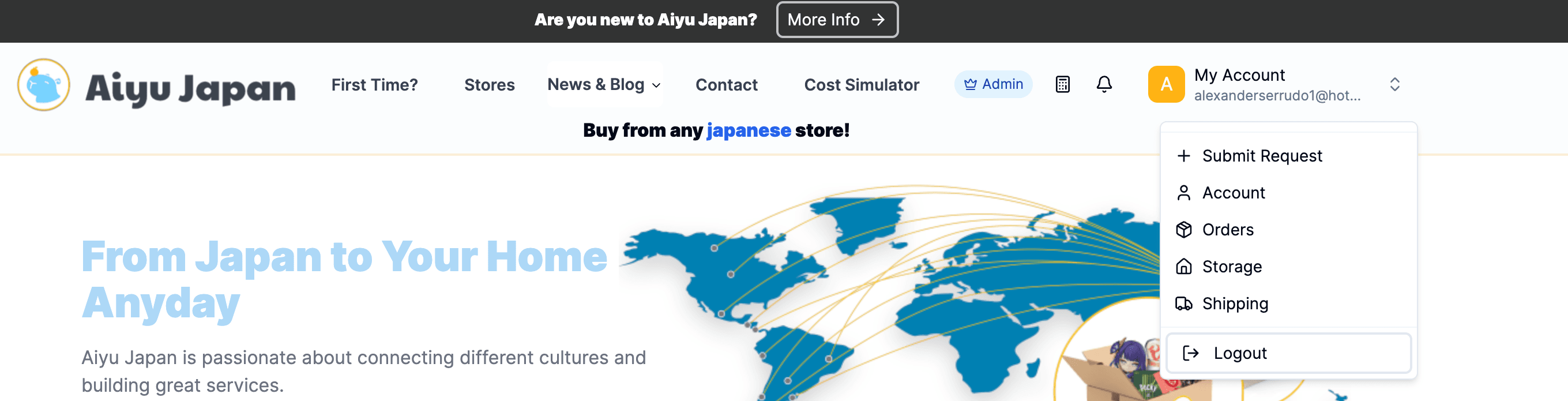
2. Understanding the Dashboard
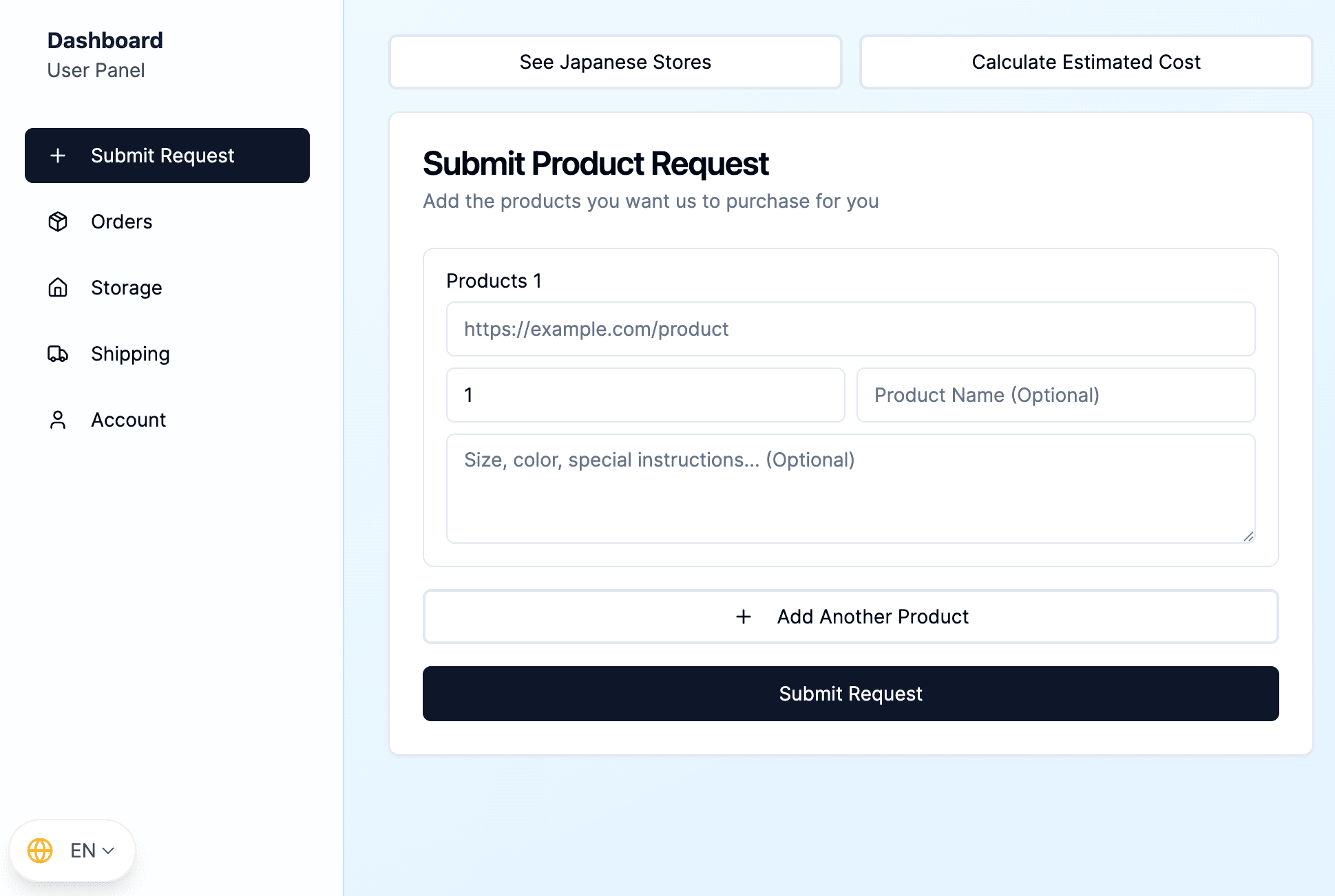
On the left-hand side of the Dashboard, you will find all the main sections of your account:
- Submit Request – Create purchase requests
- Orders – Track the status of your orders
- Storage – Manage items stored in our warehouse
- Shipping – Request international shipping
- Account – Manage your personal details and addresses
In this guide, we will first focus on Submit Product Request, where purchase orders are created.
3. Creating a purchase request (Submit Product Request)
Inside Submit Product Request, you will see a form where you must enter the information of the product you want Aiyu Japan to purchase on your behalf.
Form fields
For each product, please complete the following:
- Product URL
Paste the direct link to the product (for example, from Amazon.jp). - Quantity
Specify the desired quantity. - Product Name (optional)
Enter a short name to easily identify the item. - Size, color, special instructions (optional)
Add details such as size, color, version, edition, or any special instructions.
Practical example
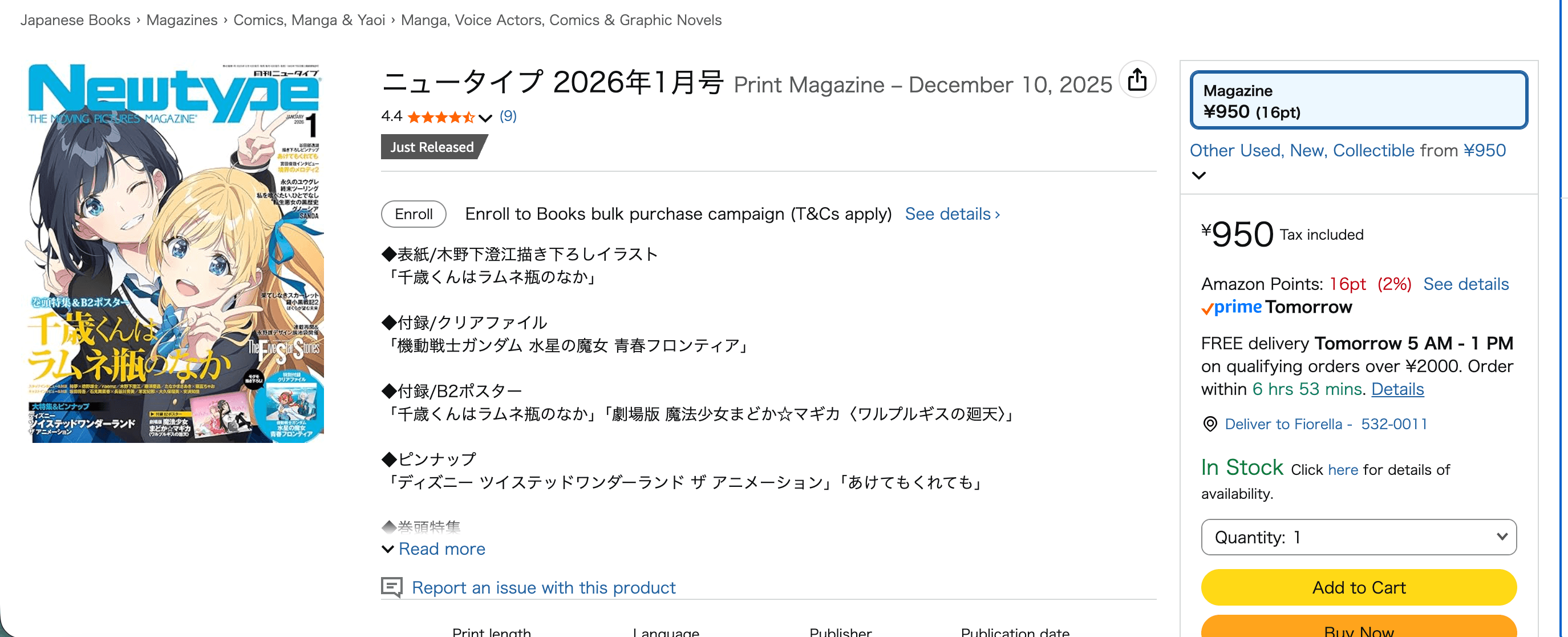
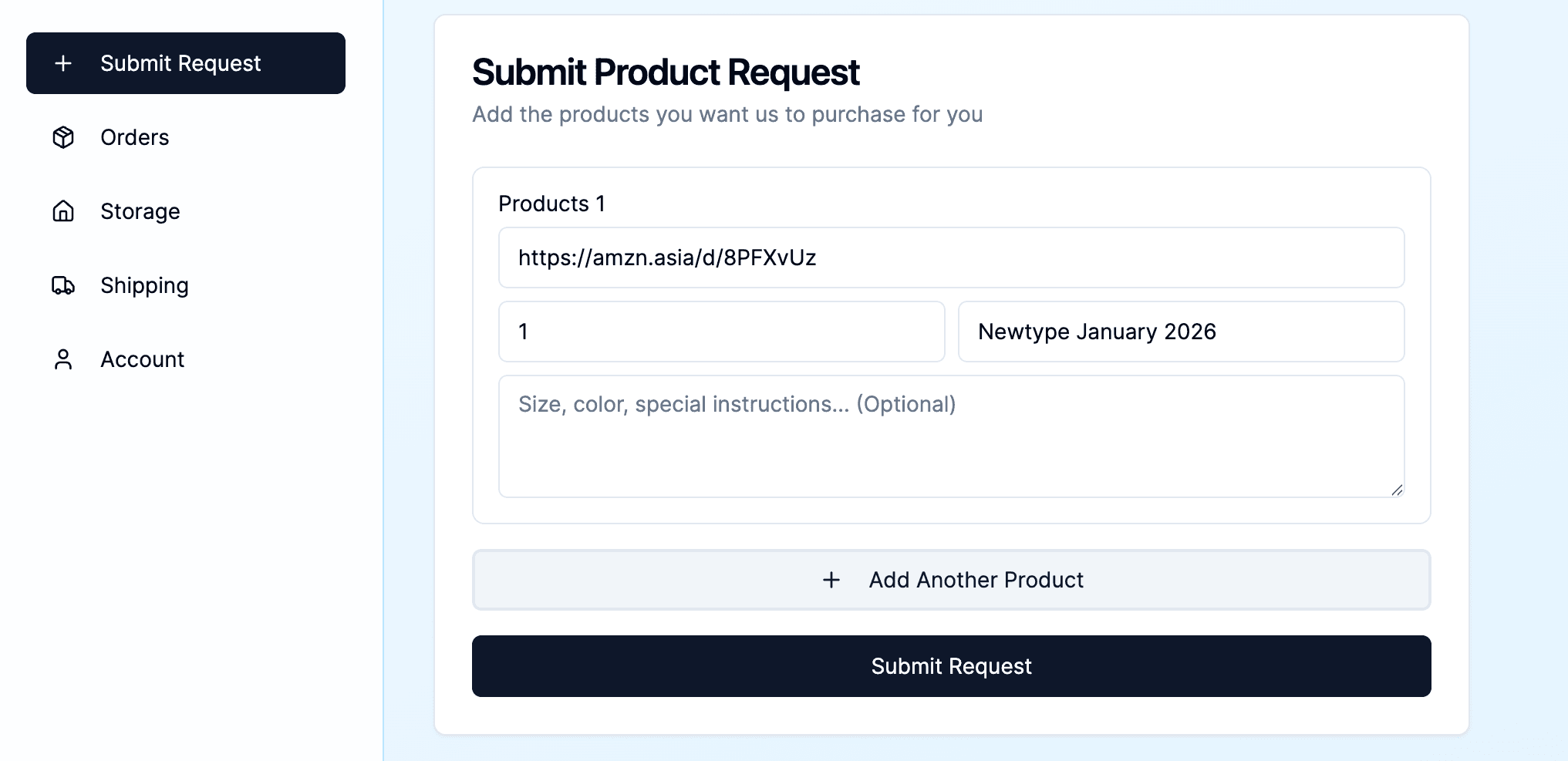
As an example, we use a magazine from Amazon.jp. Simply copy the product link, fill in the required fields, and proceed.
Suggested image: Amazon.jp product page and the request form with the URL pasted.
4. Shopping Agent service fees
Each product requested through the Shopping Agent has a fixed service fee per item:
- ¥500 per item if the product price is under ¥10,000
- ¥1,000 per item if the product price is ¥10,000 or more
This fee includes all Aiyu Japan premium services, such as:
- Assisted purchasing from Japanese stores
- Item verification
- Warehouse reception
- Unlimited storage time
- Full order management within Japan
There are no hidden fees.
5. Adding more products or submitting the request
If you want to purchase multiple items:
- Click “Add Another Product” and repeat the process.
When finished:
- Click “Submit Request” to send your purchase request.
Suggested image: “Add Another Product” button and “Submit Request” button.
6. Order tracking (Orders)
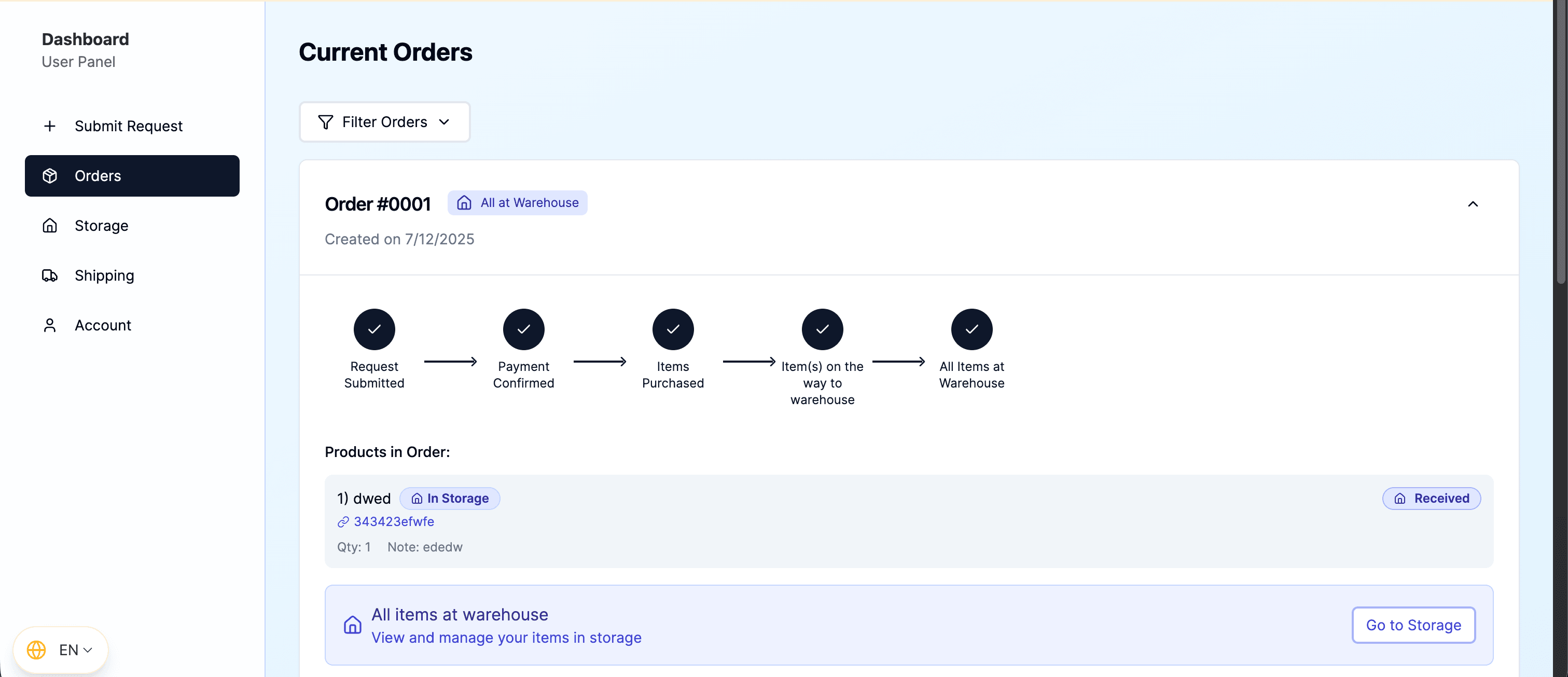
After submitting your request, it will appear in the Orders section.
The order status flow is as follows:
- Request Submitted
- Payment Confirmed
- Items Purchased
- Item(s) on the way to warehouse
- All items at warehouse
Within a few minutes (or a few hours), you will receive your payment invoice. Once payment is completed, Aiyu Japan proceeds with the immediate purchase of the item.
Suggested image: Order view with the status timeline.
7. Warehouse reception and storage
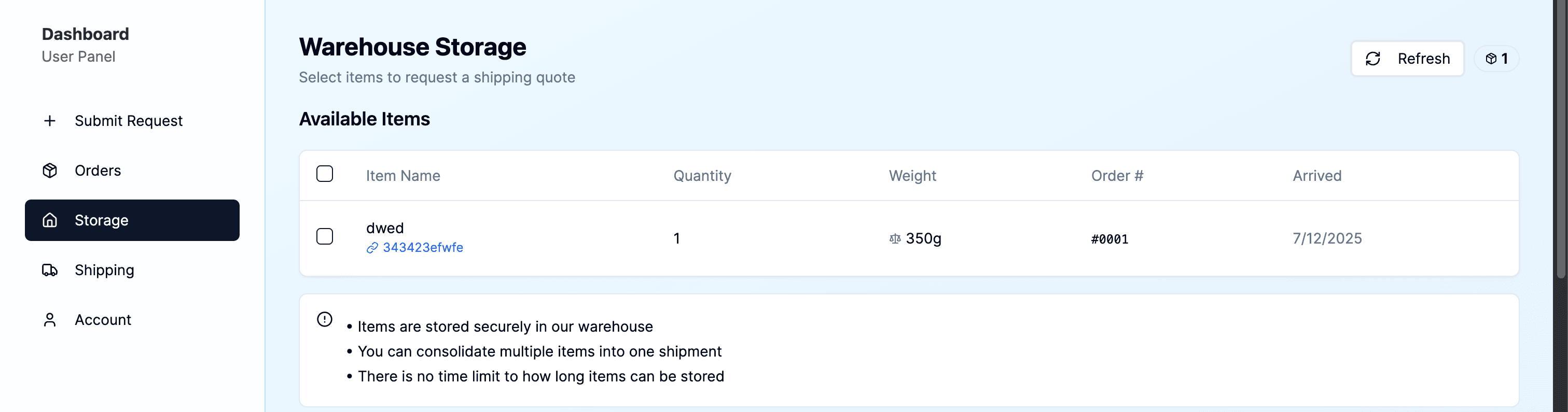
Once your item arrives at our warehouse, you will be able to see useful details such as:
- Item weight
- Arrival date
- Associated order number
One of the main benefits of the Shopping Agent service is unlimited storage, included at no extra cost. You may store your items for as long as you wish until you decide to ship them.
Suggested image: Storage section showing available items.
8. Requesting international shipping
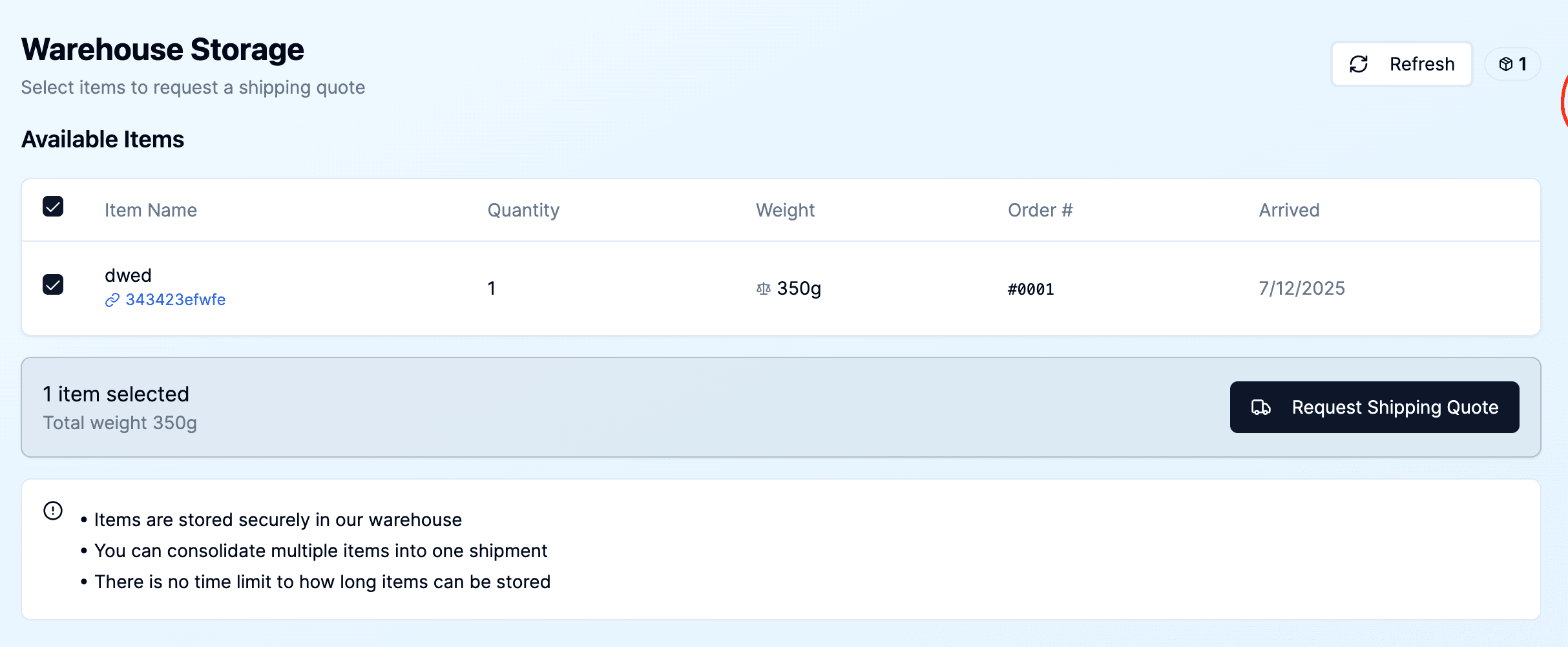
When you are ready to ship your items:
- Go to the Storage section
- Select the items you want to ship
- Click “Request Shipping Quote”
The system will display:
- A summary of selected items
- Total weight
- Destination country
- Available shipping methods
- Real-time estimated shipping costs
You can experiment freely by adding or removing items and comparing shipping methods according to your needs.
Suggested image: Shipping quote modal with available methods.
9. Shipping address
During the shipping request, you may:
- Use the address saved in your account, or
- Enter a new shipping address if desired
This provides full flexibility to ship your purchases to any destination.
Suggested image: Shipping address form.